
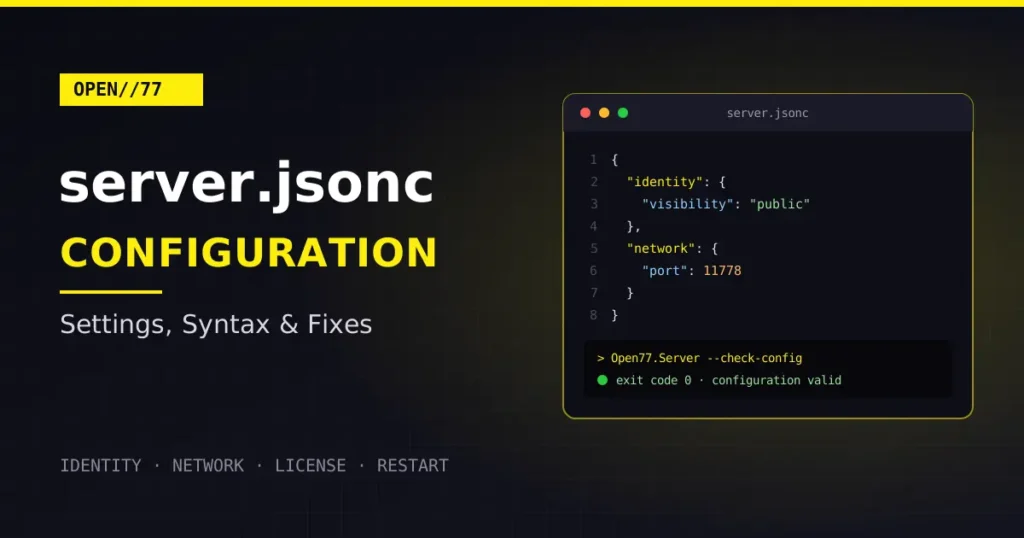
server.jsonc is the main configuration file of an OPEN//77 dedicated server. It is plain JSON with // comments, it sits next to the server executable, and it groups settings into sections such as identity, network, masterServer, resources.download, database, warden and logging. Edit and save it, check it with --check-config, then restart the server so the changes load.
This guide explains what each important setting does, how to edit the file without breaking your server, and how to fix the mistakes that most often keep a server out of the launcher list.
What Is server.jsonc in OPEN//77?
server.jsonc tells the server who it is and how players reach it. At startup the server uses it to publish its name, public address and status to the OPEN//77 master server. The official docs put it plainly: there is no separate listing form, because the config is the listing.
You can create the file in three ways:
- The first-run setup wizard writes it for you when no
server.jsoncexists on first launch. - By hand, by placing a valid file beside the executable before launch. This skips the wizard.
- Through Warden, the admin panel, which edits the same file later.
Where Is the server.jsonc File Located?
It lives in the unpacked server folder, beside the server executable. The server reads server.jsonc by default, and the official docs tell you to run commands from that folder. To use a different file, pass --config PATH at launch.
Check which file you actually launch. If you keep several config files, an edit to the wrong one changes nothing.
Other files sit nearby. Uploaded icon and banner images are saved next to the config, and in-game rights live in a separate acl.jsonc. If you haven’t installed the server yet, follow our OPEN//77 server setup guide first.
How Is server.jsonc Structured?
The file is one JSON object. Each top-level key is a section, and some sections nest further. Documentation and startup options refer to fields with dotted paths, such as network.publicEndpoint or resources.download.publicBaseUrl. Download settings live under resources.download, not a top-level download section, which is a common mistake.
Important server.jsonc Settings Explained
Identity and listing
| Setting | What it does |
|---|---|
identity.name |
The server name shown in the launcher and on open2077.net. |
identity.description |
The description shown on the server’s page. |
identity.visibility |
"public" lists the server. "private" keeps it enrolled and licensed but off the public list. The startup options also accept Unlisted. |
identity.tags |
An array of tags. The launcher files the server under the first tag that names a known mode, so order matters. |
identity.icon, identity.banner |
Relative file paths to the icon and banner images, not URLs. |
Network
| Setting | What it does |
|---|---|
network.port |
The game UDP port. |
network.publicEndpoint |
The address players are given to connect: a public hostname or IP plus the port. LAN and loopback addresses are not public listings. |
network.maximumPlayers |
The player slot limit. |
Platform link and downloads
| Setting | What it does |
|---|---|
masterServer.enabled |
Keep true. This is what enrols and lists the server. |
masterServer.url |
Defaults to the production master. You rarely change it. |
masterServer.licenseKey |
Leave null and use the environment variable (see best practices). |
resources.download.enabled |
Turns on the resource download listener. |
resources.download.listenUrl |
Where the server listens for downloads, for example http://0.0.0.0:11779/. 0.0.0.0 means all IPv4 interfaces and is not an address players can use. |
resources.download.publicBaseUrl |
The URL players use to reach downloads. |
Optional sections
| Setting | What it does |
|---|---|
database.enabled, connectionString, connectionStringEnvironmentVariable, maxRows |
The MySQL/MariaDB bridge. It is off by default, and maxRows accepts 1 to 1,000,000 (default 10,000). |
warden.enabled, warden.bind |
Turns the admin panel on and sets where it listens. |
logging.level |
trace, debug, info (default), warn or error. |
simulation.tickRate, simulation.snapshotRate |
Simulation rates. The docs don’t state defaults, so change them only for a reason and test on your hardware. |
With the default ports, the game uses UDP 11778 and downloads use TCP 11779. Startup arguments don’t open firewall ports, so allow both yourself.
How to Edit server.jsonc Safely
- Copy the file first. Keep a dated backup.
- Edit one section at a time in a plain text editor.
- Validate before restarting (see the apply section below).
- Restart the server and read the startup log.
- Confirm the server appears in the launcher if it should.
If you use Warden, its Config tab edits the same file. Image uploads need the config.edit permission, which the owner account has.
Valid JSONC Syntax and Formatting
The official docs describe server.jsonc as JSON with // comments. Stick to standard JSON otherwise:
- Keys and string values use double quotes.
- Numbers and
true/falseare not quoted. - Separate items with commas.
nullclears a nullable value.- Field types must match: a number field can’t hold a string.
Documentation covers // comments only. Don’t rely on other JSONC extensions such as block comments or trailing commas unless --check-config accepts them.
Example server.jsonc, Explained Line by Line
This example uses documented fields and the documentation’s own placeholder values (203.0.113.10 is a reserved example address):
{
  "identity": {
    "name": "Neon District RP",
    "description": "A persistent roleplay server for English-speaking players.",
    "visibility": "public",
    "tags": ["roleplay", "english"],
    "icon": "server-icon.png",
    "banner": "server-banner.png"
  },

  "network": {
    "port": 11778,
    "publicEndpoint": "203.0.113.10:11778",
    "maximumPlayers": 32
  },

  "masterServer": {
    "enabled": true,
    "url": "https://master.open2077.net/",
    "licenseKey": null
  },

  "resources": {
    "download": {
      "enabled": true,
      "listenUrl": "http://0.0.0.0:11779/",
      "publicBaseUrl": "http://203.0.113.10:11779/"
    }
  },

  "logging": {
    "level": "info"
  }
}
What each part does:
identity: the public face of the server.visibility: "public"makes it listed. The tags tell the launcher what kind of server this is. The icon and banner are relative paths to files beside this config.network.portis the game UDP port, andpublicEndpointis what players are told to dial. It must be a public address, not192.168.x.x.masterServer: keeps the platform link on.licenseKeystaysnullbecause the key is supplied by environment variable.resources.download: the listener binds to all interfaces on 11779, whilepublicBaseUrlis the address players actually use.logging.level:infois the default and the right level for normal operation.
Optional blocks from the docs. Merge these into your existing file rather than replacing it.
Database (leave connectionString empty and supply the secret by environment variable):
"database": {
  "enabled": true,
  "connectionString": "",
  "connectionStringEnvironmentVariable": "OP77_DATABASE_CONNECTION",
  "maxRows": 10000
}
Warden (the docs recommend keeping it on localhost):
"warden": {
  "enabled": true,
  "bind": "127.0.0.1:11780"
}
How to Apply server.jsonc Changes
Edit the file, then restart the server. The server reads its configuration when the process starts. A few things behave differently:
| Change | What is needed |
|---|---|
Editing server.jsonc by hand |
Restart the server. |
| Startup arguments or environment variables | Read at start, so restart after changing them. |
| Uploading an icon or banner in Warden | No restart. The change is re-sent to the master. |
| Name, description, tags, visibility, player cap or public endpoint changed in Warden | Restart required. Warden shows a banner when it is. |
| Database settings | Restart the whole server. Reloading a Lua resource doesn’t recreate the database bridge. |
Precedence. When the same field is set in several places, the highest wins:
- Built-in defaults
server.jsoncOP77_CONFIG__...environment variables- Command-line overrides
This explains the classic “my change disappeared” problem. Overrides apply to the running process only and never rewrite the file, so a startup argument can silently beat a value you saved.
Validate without starting. Add --check-config to the exact command and environment you’ll use:
./Open77.Server --no-setup --config server.jsonc --check-configExit code 0 means validation passed. Exit code 2 means a configuration or argument error, and the message names the field. Check mode doesn’t test your firewall, database credentials or installed resources, so a valid config doesn’t prove players can connect.
Overriding a single field. --set section.field=value works for any field, for example:
./Open77.Server --set network.maximumPlayers=64Environment variables use the prefix OP77_CONFIG__, with each dot in the path replaced by two underscores. This needs server version 2.31.13+op77.91 or newer.
Common server.jsonc Errors and How to Fix Them
| Symptom | Likely cause | Fix |
|---|---|---|
| Server won’t start, exit code 2 | Invalid JSONC syntax, wrong field type or an unknown field | Run --check-config and fix the field it names. |
| “Unknown field” for download settings | Used download.* |
Use resources.download.*. |
| Server missing from the launcher | Visibility not public, license missing or invalid, masterServer.enabled false, or a LAN or loopback publicEndpoint |
Check each in order. LAN and loopback addresses are never public listings. |
| Server vanished after changing images | Icon and banner together exceed the master’s registration limit (about 378 KiB combined), which refuses the whole registration | Shrink the images. A photo banner should be JPEG or WebP, not PNG. |
| Placeholder icon on the website | Icon is under 64×64 px or not square | Use a square PNG, 64 to 512 px (256×256 recommended). |
| Players connect but resources fail to download | Wrong publicBaseUrl or TCP 11779 blocked |
Check the URL and port from outside the machine. |
| Startup rejects database settings | Empty connection string, blank variable name, or maxRows outside 1 to 1,000,000 |
Supply the connection string by environment variable and fix the range. |
| An edit changed nothing | Edited a different file than the one launched, or didn’t restart | Confirm the --config path, then restart. |
| Warden edits revert after restart | A startup argument or environment variable overrides the same field | Remove the override or change it there. |
| Old loopback address returns | A file value alone doesn’t stop --public-ip from replacing it |
Set the field explicitly at startup. |
Best Practices for Managing Your Server Configuration
- Keep secrets out of the file. Set
OP77_LICENSE_KEYandOP77_DATABASE_CONNECTIONas environment variables soserver.jsoncstays safe to copy or back up. Don’t put secrets in command-line arguments, which process lists and panel logs can expose. Environment variables set in a shell don’t carry into a Windows service or systemd unit, so configure those separately. - Validate every change with
--check-configbefore restarting a live server. - Back up before changing anything. Back up
server.jsonc,acl.jsonc, the.open77/folder (identities and signing keys, per the official Light RP starter), your resources and the database. - Put TLS in front of resource downloads. Downloads are plain HTTP by default. The docs allow an HTTPS
publicBaseUrlwith a loopback listener behind a reverse proxy. - Return logging to
infoafter troubleshooting. Debug and trace can produce a lot of output on a busy server. - Never overwrite a live server with a preview build. Test unstable builds in a separate folder.
- Share logs safely. Remove credentials and secrets, and never post an unredacted environment dump or config file when asking for help.
If you’d rather not manage ports, updates and configuration yourself, OPEN//77 server hosting is an option. You’ll still use the same server.jsonc settings described here.
Frequently Asked Questions
What is server.jsonc in OPEN//77?
It is the main configuration file of an OPEN//77 dedicated server. It is JSON with // comments and defines the server’s name, visibility, public endpoint, license link, download settings and optional features such as the database bridge and Warden.
Do I need to restart after editing server.jsonc?
Yes. The server reads its configuration at startup, so restart after editing the file by hand. The exception is icon and banner uploads in Warden, which apply without a restart.
Can I put my license key in server.jsonc?
You can, but the official docs recommend leaving masterServer.licenseKey as null and setting the OP77_LICENSE_KEY environment variable. That keeps the file safe to copy, back up or share.
How do I check server.jsonc for errors without starting the server?
Add --check-config to your normal launch command. Exit code 0 means the configuration is valid and 2 means an error, with the affected field named. It doesn’t test firewall reachability or database credentials.
Why isn’t my server showing in the OPEN//77 server list?
Check that identity.visibility is "public", your license key is valid, masterServer.enabled is true, and network.publicEndpoint is a public address rather than a LAN or loopback one. An over-budget icon and banner pair can also cause the master to refuse the registration entirely.