
Whether you’re managing a FiveM, RedM, or Minecraft server on Revive Hosting, accessing your game server database is essential for managing configurations, logs, and player data. This guide shows you how to connect to your database using phpMyAdmin (browser-based) or HeidiSQL (desktop-based) in just a few steps.
How to Log In to phpMyAdmin
Step 1: Log In to Your Game Panel
Go to https://game.revivehosting.net and sign in to your Game Panel.
Step 2: Go to the Database Tab
Navigate to the Database tab and click the “phpMyAdmin” button.

Step 3: View Your Database Credentials
Click the eye icon to reveal your database username and password.

Step 4: Log In to phpMyAdmin
Copy the username and password, then paste them into the phpMyAdmin login page to access your database.
How to Connect Using HeidiSQL
Step 1: Log In to the Game Panel
Visit https://game.revivehosting.net and log in.
Step 2: Reveal Database Info
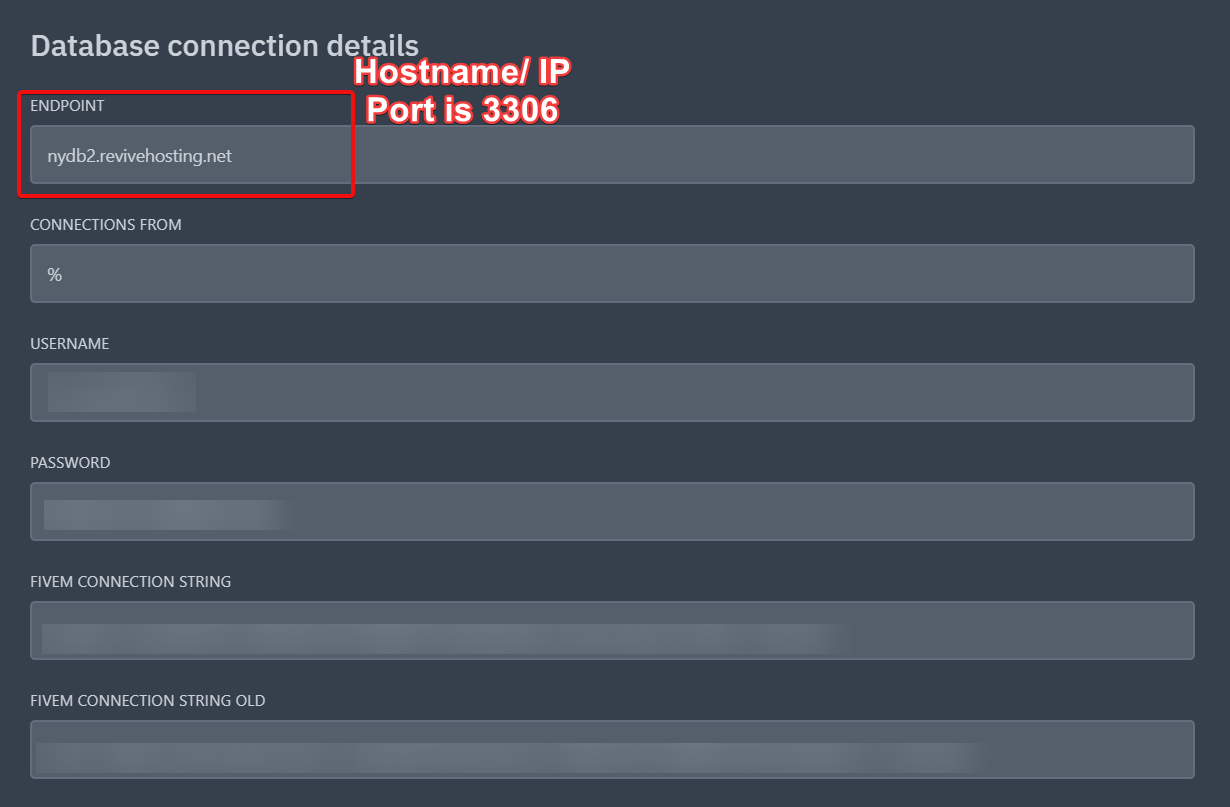
Click the eye icon to view the hostname/IP, username, and password.

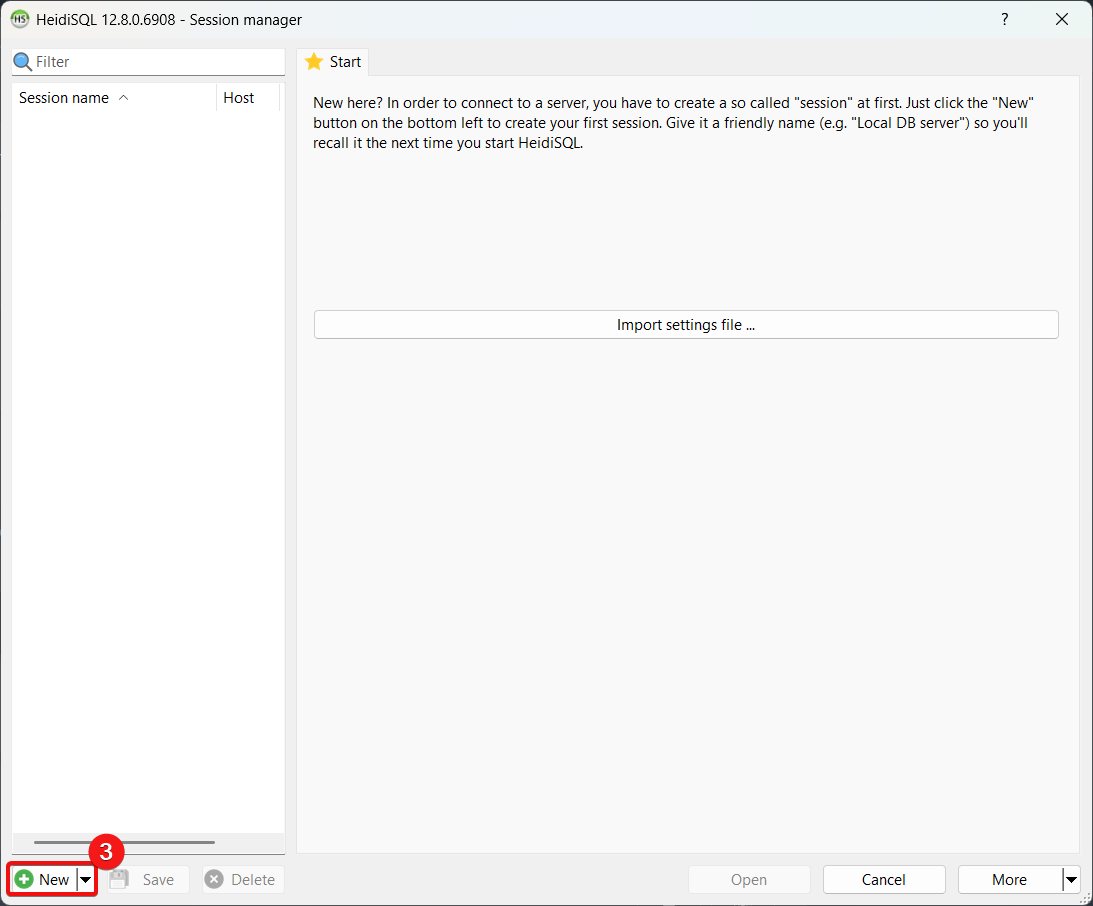
Step 3: Open HeidiSQL and Create a New Connection
Click “New” in HeidiSQL to set up a new session.
Step 4: Enter the Database Info
Paste the details into HeidiSQL as follows:
- Hostname/IP: Use the “Endpoint” shown in your panel
- Port: Use 3306
- User: Database username
- Password: Database password
Click “Open” to connect and manage your game server’s database directly from your PC.
Conclusion
Using phpMyAdmin or HeidiSQL makes managing your game server’s database fast and efficient. With Revive Hosting, it’s just a few clicks away. Whether you’re editing tables, adding users, or monitoring logs, this access keeps your server under control.