
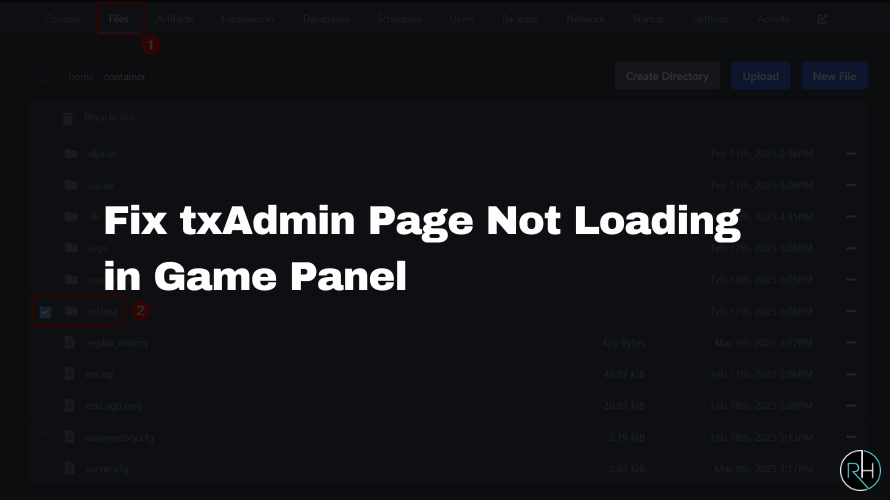
If your txAdmin page isn’t loading on the Game Panel, the issue is likely related to port allocation. Follow this simple step-by-step guide to resolve it quickly on Revive Hosting.
Step-by-Step Guide to Fix txAdmin Not Loading
Step 1: Log in to Your Game Panel
Visit https://game.revivehosting.net and log in with your credentials.
Step 2: Check Port Allocation
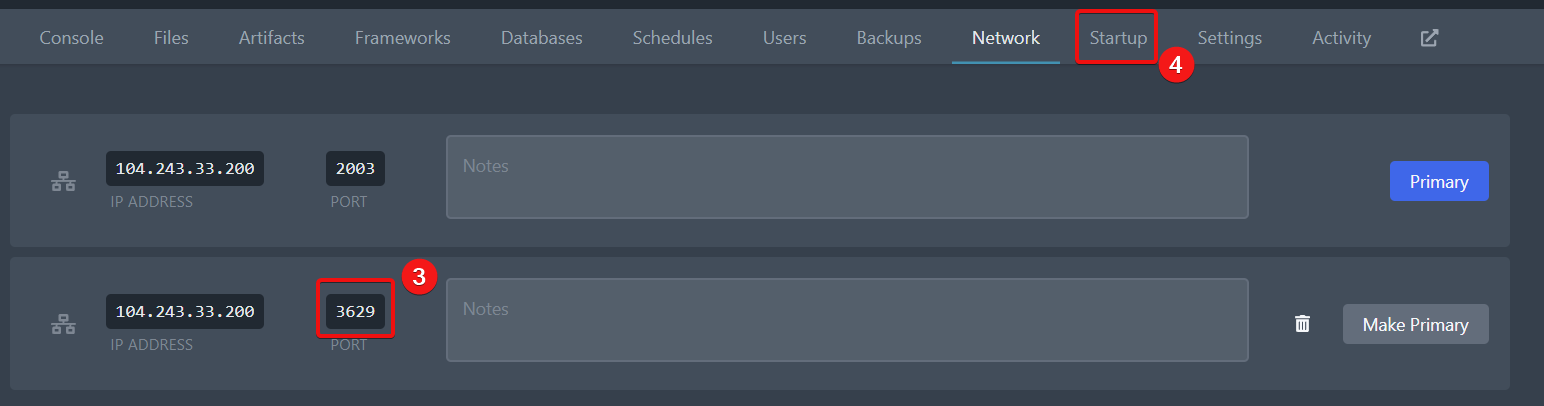
Go to the Network tab.
- If you already have two ports, you’re good to go.
- If there’s only one port, click on “CREATE ALLOCATION” to add another one.

Step 3: Copy the Secondary Port
After creating the second port, copy the port number that is not marked as Primary.
Step 4: Set txAdmin Port in Startup Tab
Navigate to the Startup tab.
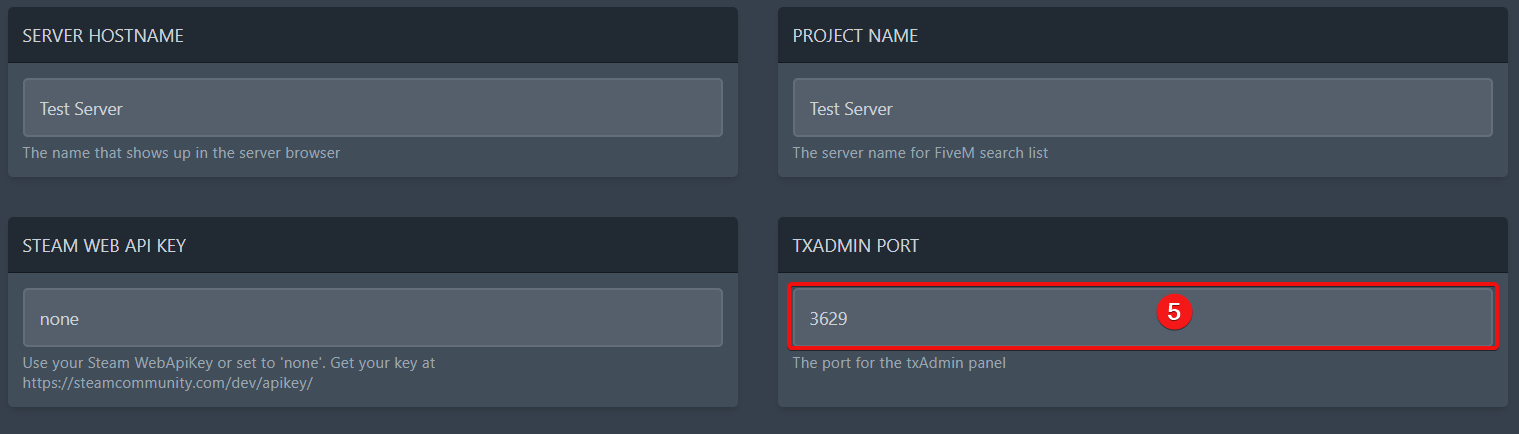
Look for the TXADMIN PORT field and paste the copied port number there.
Step 5: Restart Your Server
Once the port is set, restart the server to apply the changes.
You’re Done!
Your txAdmin page should now load correctly. If issues persist, contact Revive Hosting Support—we’re here to help!