
At Revive Hosting, we offer flexible hosting solutions for RedM, Palworld, FiveM servers, and game VPS hosting. If you ever need to upgrade your hosting package, the process is quick and easy. While VPS plans only support upgrades (no downgrades available), our system ensures you’re only charged for the difference, not the full price again.
Step-by-Step Guide to Upgrade/Downgrade Hosting
Important Notes:
- You’ll only be charged the difference when upgrading a plan.
- Downgrade is not available for VPS hosting—only upgrades are supported.
Step 1: Log in to Your Billing Account
Go to https://billing.revivehosting.net and log in using your credentials.
Step 2: Access “My Services”
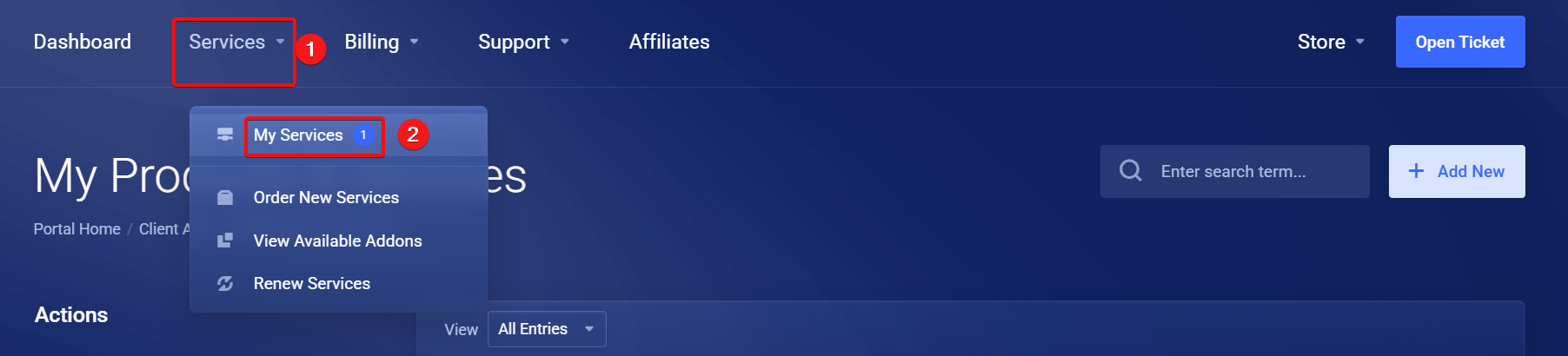
Click on the “Services” tab and then select “My Services” from the dropdown.
Step 3: Select Your Active Service
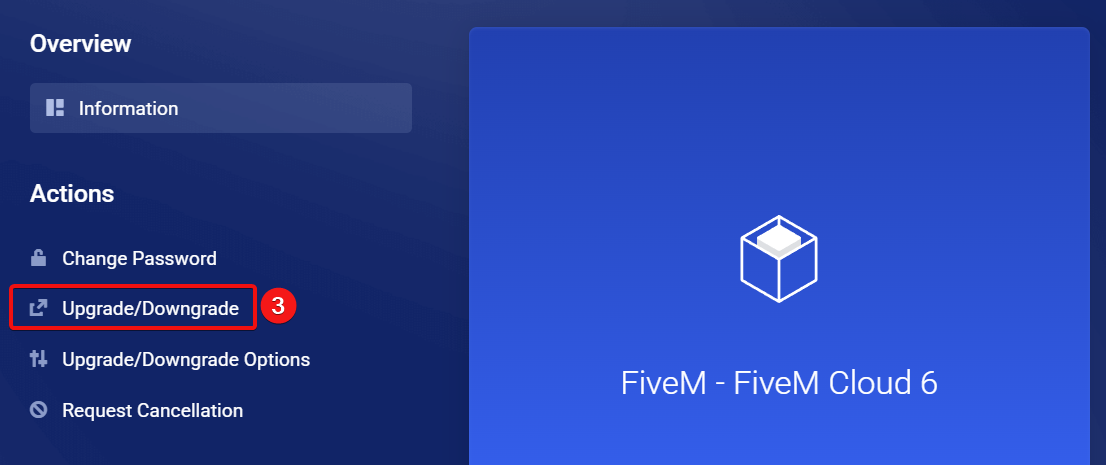
Choose the hosting service you want to upgrade or downgrade. On the left-hand side menu, click on “Upgrade/Downgrade”.
Step 4: Choose Your New Plan
From the list of available packages, select the plan you want to switch to. After choosing, proceed to checkout and pay only the price difference.
And You’re Done!
Your hosting package will be updated after payment. If you encounter any issues, our support team is available to help you 24/7.