
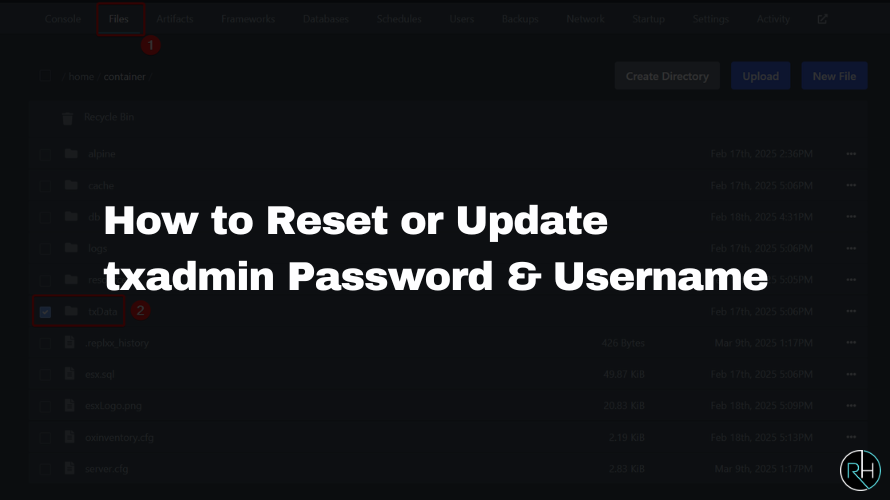
If you’ve forgotten your txAdmin login credentials or just want to update your username and password, this guide from Revive Hosting will walk you through the process step by step. This method ensures a clean reset without any leftover data that might interfere.
Step-by-Step Guide to Reset or Update txAdmin Credentials
Step 1: Ensure txData Folder Is Empty
Before starting, make sure there are no scripts or files running inside your txData folder. This helps avoid configuration conflicts during the reset process.
make sure there is no script in txData folder. By default txData folder contain admins.json and defualt folder. If you see 3rd folder then contact our support before proceeding

Step 2: Delete the txData Folder
Locate and delete the entire txData folder. This removes all previous configuration files, including stored login details.
⚠️ Warning: Deleting this folder will erase your server’s txAdmin settings. Make a backup if needed.

Step 3: Open txAdmin Settings
Launch txAdmin and navigate to the Settings section. This is where you’ll input your new login credentials.

Step 4: Update Username and Password
Inside the settings, you’ll be prompted to enter a new username and password. Choose a strong, secure combination and save your changes.

Step 5: Reinstall via Settings
Finally, use the Reinstall option in settings to apply the new configuration. This will complete the reset process and allow you to log in with your updated credentials.

Need Hosting Support?
At Revive Hosting, we make server management easy. Whether you’re running RedM, Palworld, or FiveM servers, our reliable game VPS hosting solutions are optimized for performance and security. Let us handle the backend while you focus on the gameplay!